Hello everyone!
Following our recent updates to draft records, we have released a few more improvements to the interactive table.
Turn the interactive table on or off
You can now turn the interactive table on or off for a table directly from the views panel.
- Click on Views.
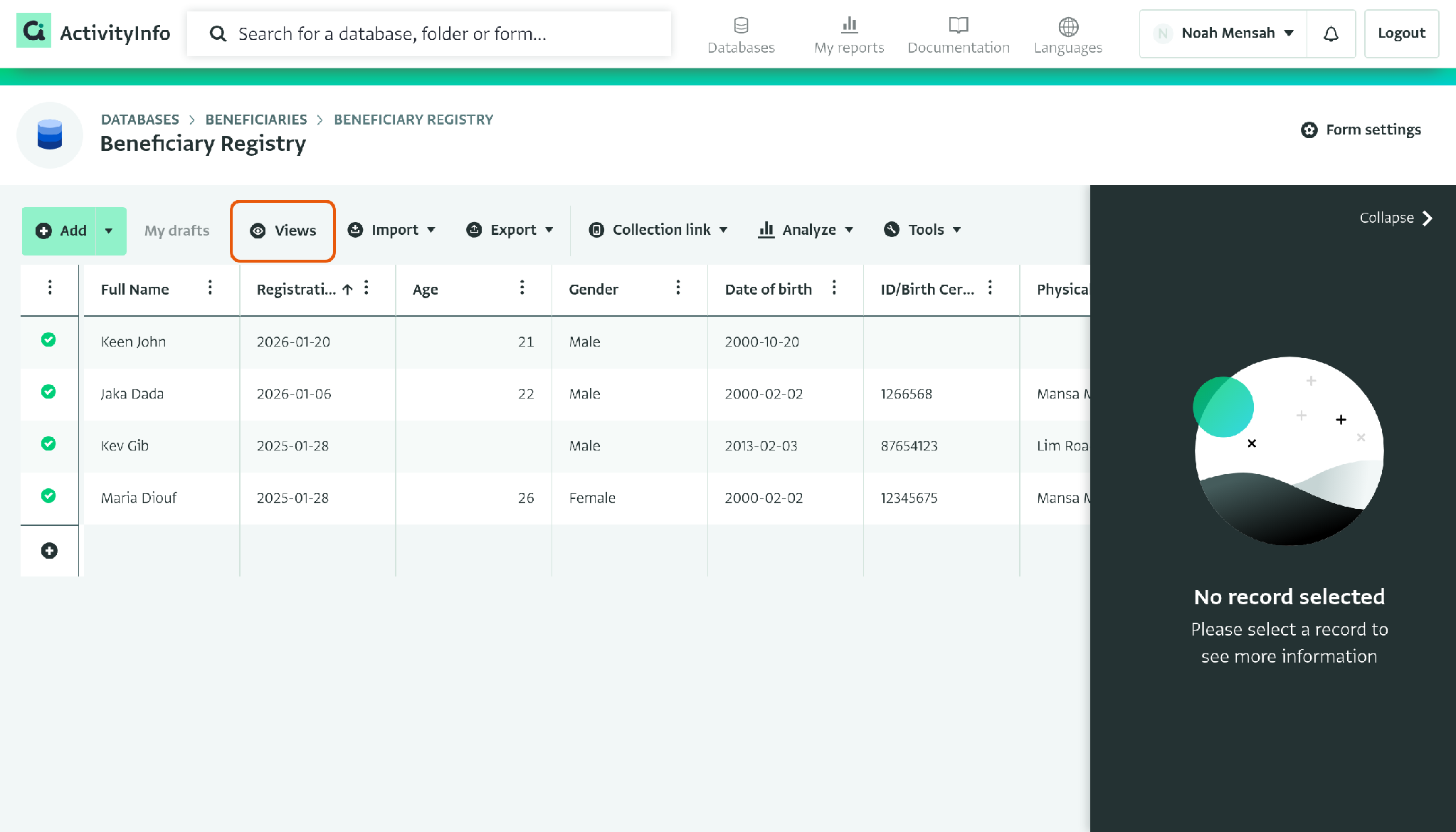
- In the views panel, select the Use interactive table checkbox to turn the interactive table on. Clear the checkbox to turn it off.
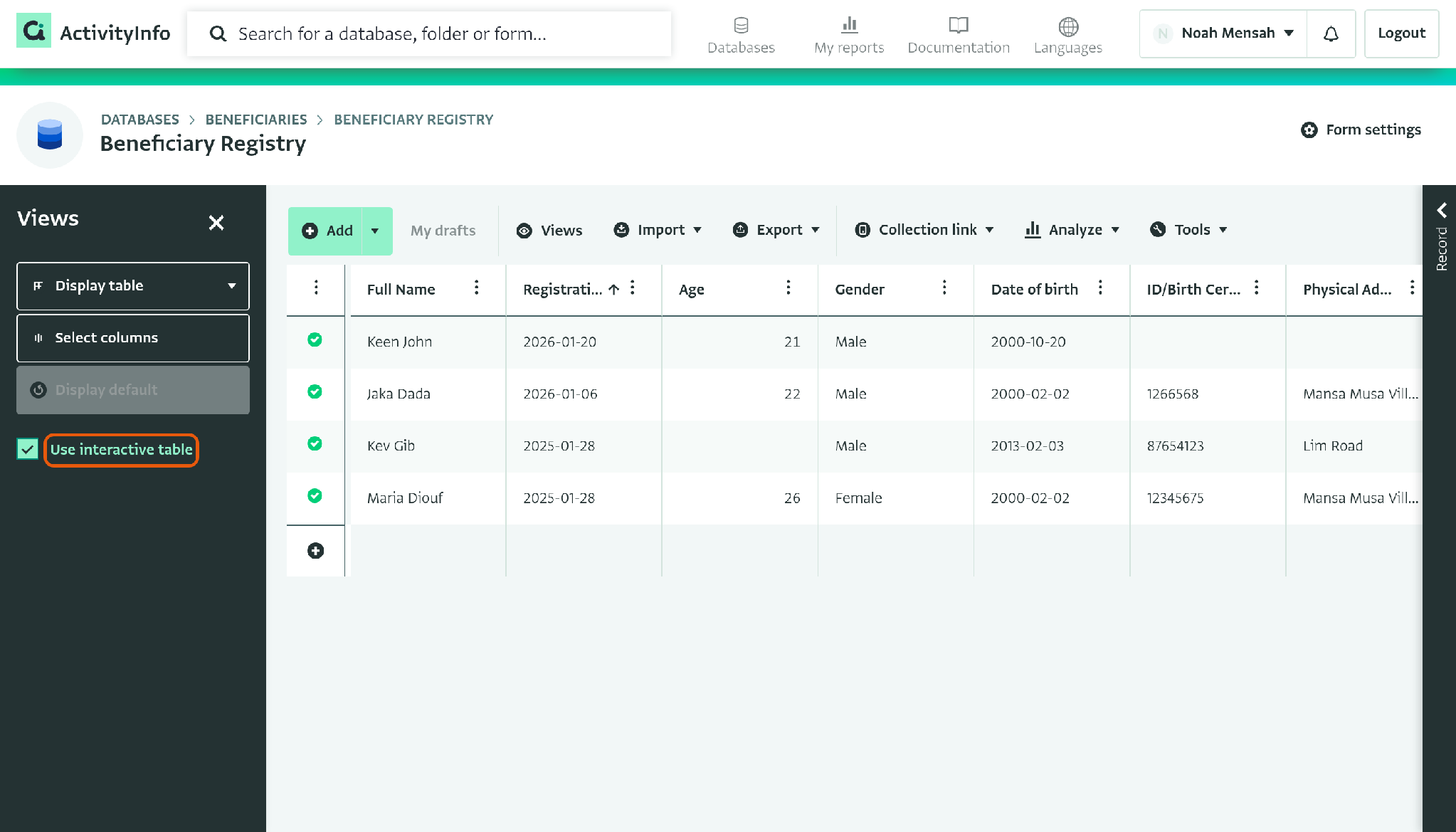
The first time a table opens in interactive mode, a tip next to the Views button explains that you can edit the table directly. Click on Dismiss to close the tip.
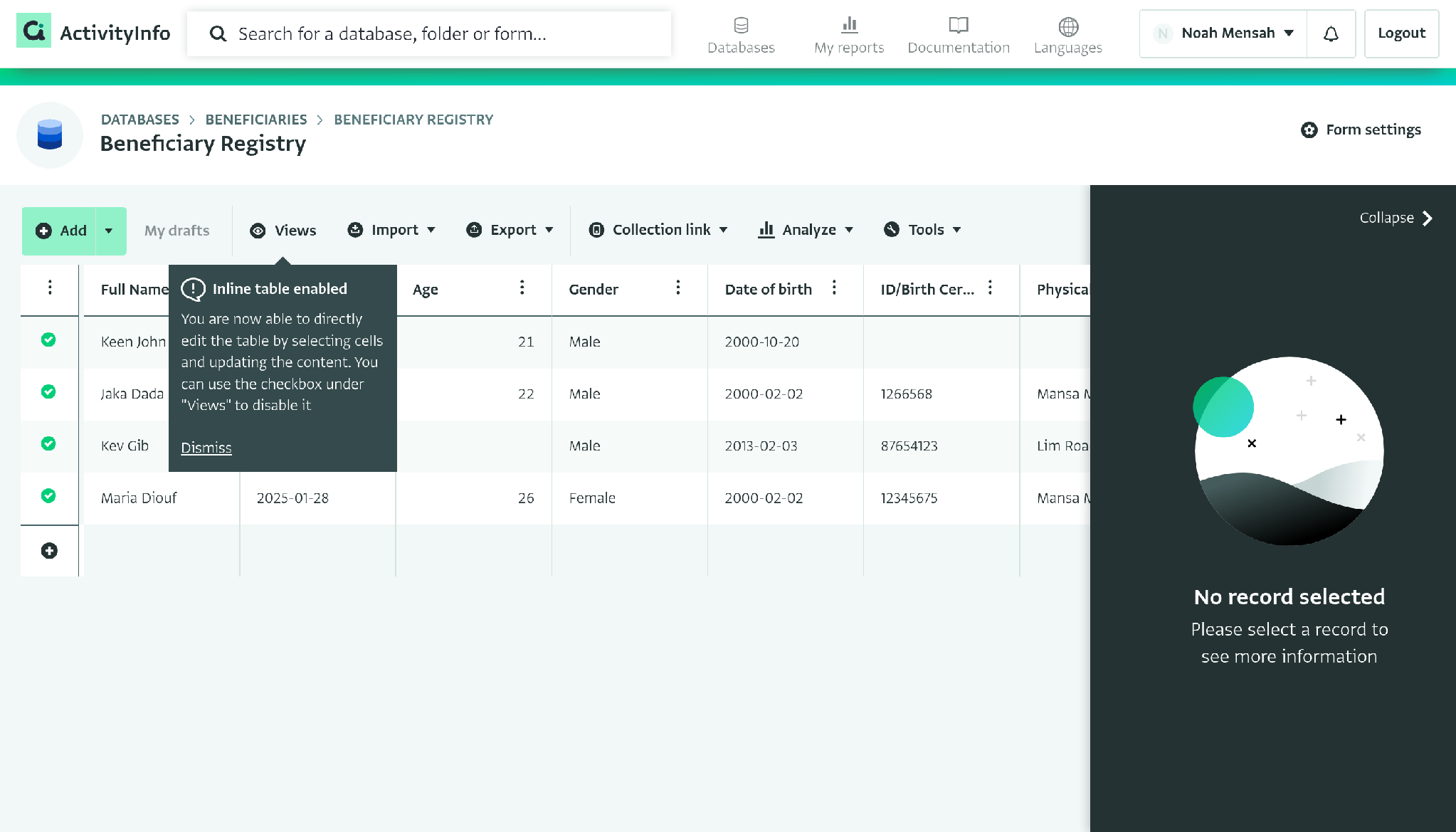
The interactive table setting is part of the view. To choose the setting for everyone who uses a form, save it in a shared default view.
Open tables in interactive mode by default
You can now choose whether the forms in a database open in interactive mode by default. To change this setting, you need to be the database owner, or have a role that includes the Edit database settings, forms, folders and reports permission for the entire database.
-
Open the database and click on Database settings.
-
Click on Security.
-
Under Interactive tables, select the Enable interactive table by default checkbox. Clear the checkbox to turn the setting off.
-
Click on Save.
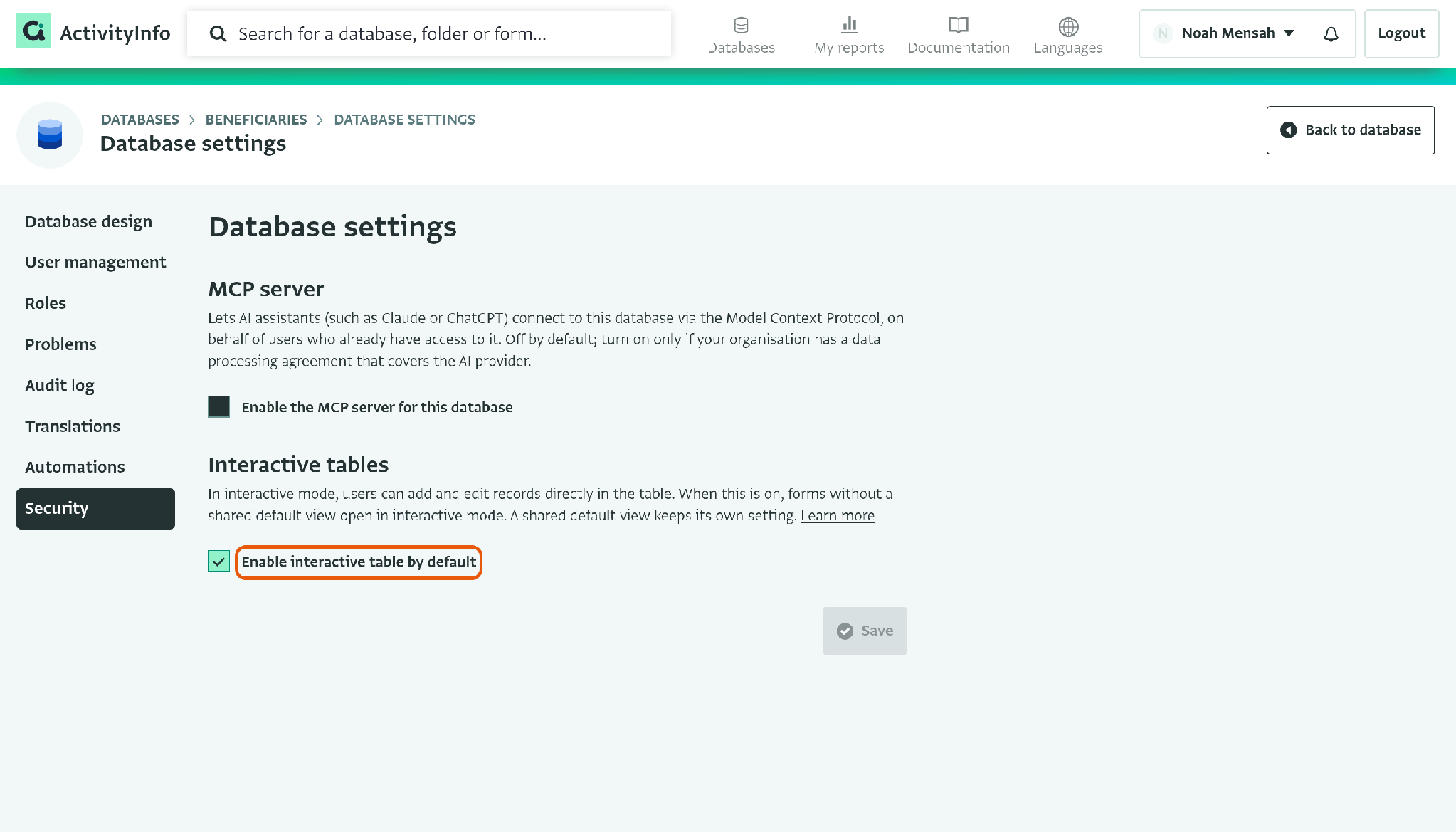
When this setting is on, forms without a shared default view open in interactive mode. A form with a shared default view keeps the interactive table setting of that view. Users can still turn the interactive table on or off for themselves in the views panel.
New databases, including copies made with Duplicate database, have this setting turned on.
Add new records directly in the table
You can now add a new record as a row in the table, without opening the data entry form.
-
To add a row at the bottom of the table, click on the + button in the last row of the status column.
-
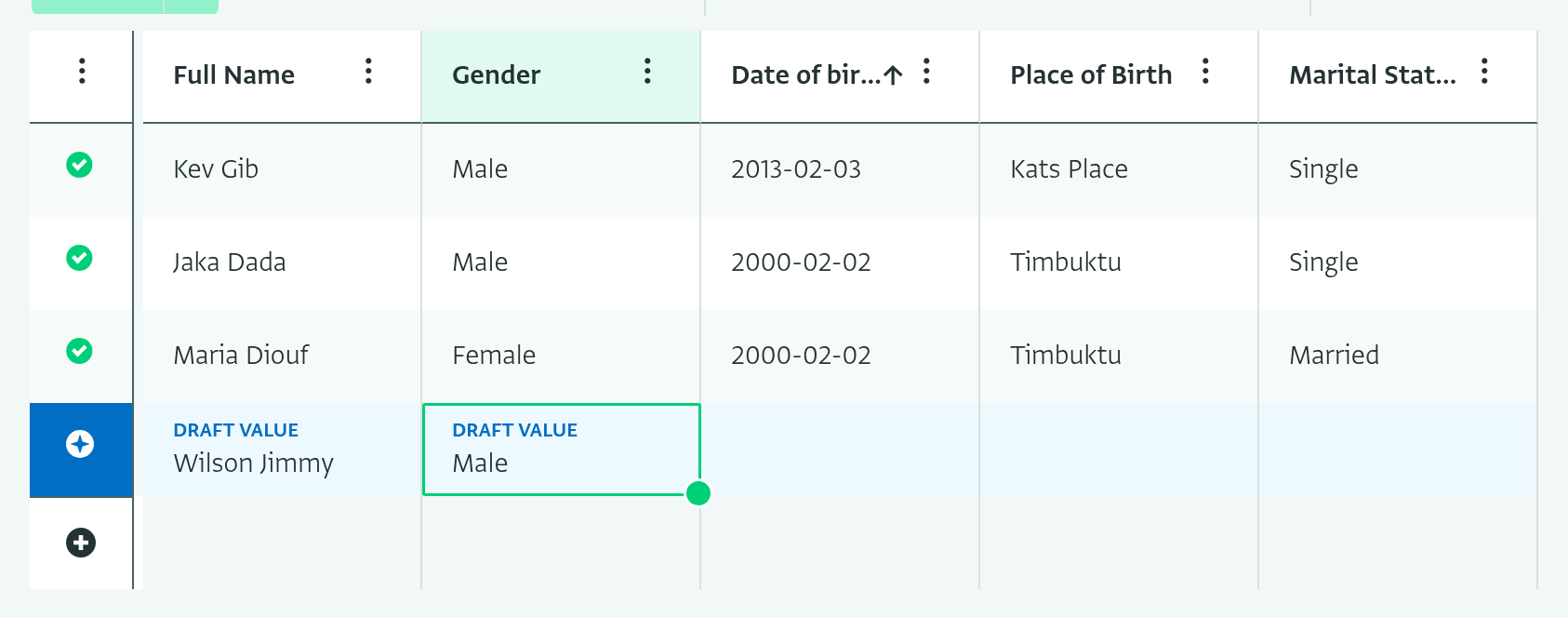
To add a row above or below a record, hover over the status icon of the record, then click on the + button that appears above or below the icon.
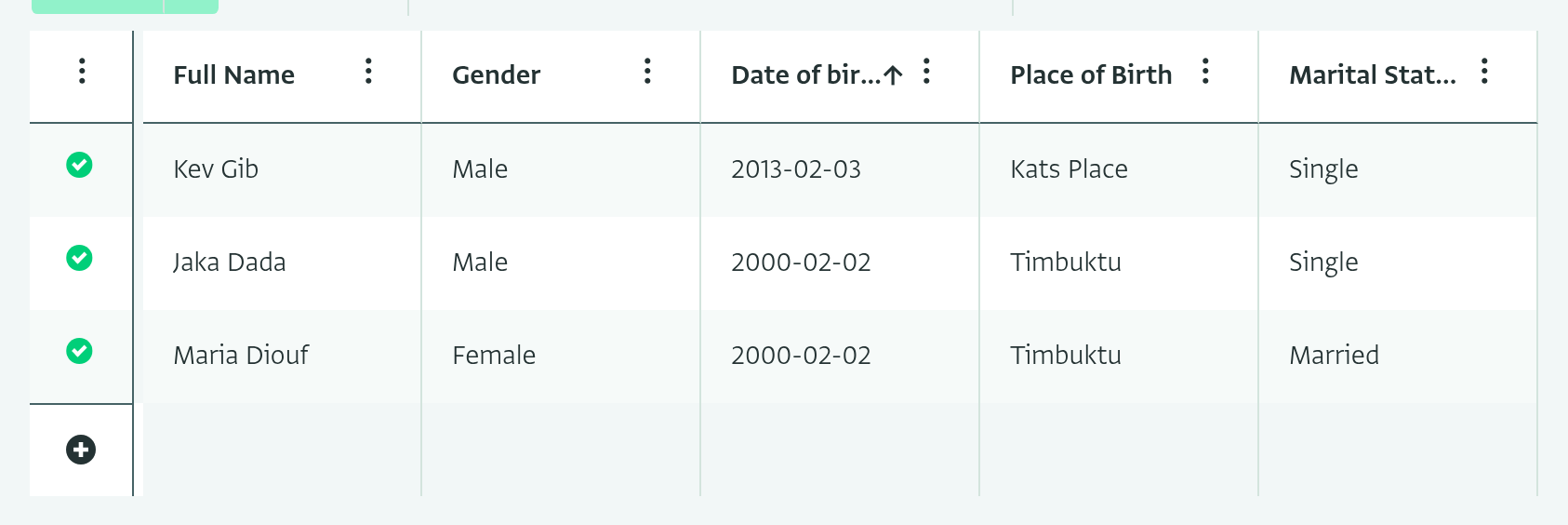
The new row is a draft. Fill in the field values, then submit the record to the server.
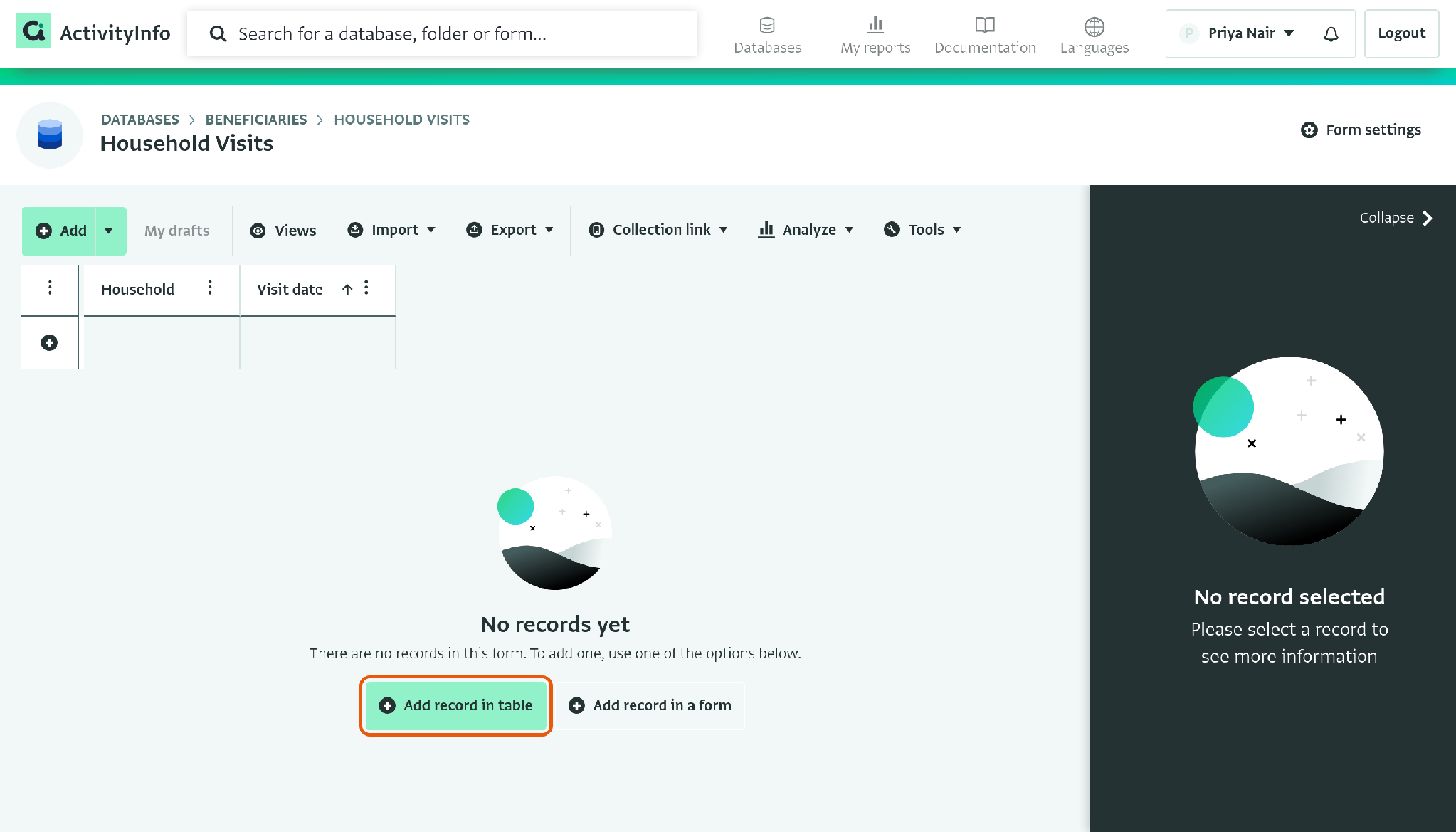
If a form has no records yet, the table now shows two options: Add record in table adds an empty row to the table, and Add record in a form opens the data entry form.
See which forms have drafts
On the database page, a blue counter next to a form now shows how many draft records you have in that form. Next to a folder, the counter shows how many drafts you have and in how many forms. This makes it easy to see where you still have drafts waiting to be submitted.

Drafts in subforms
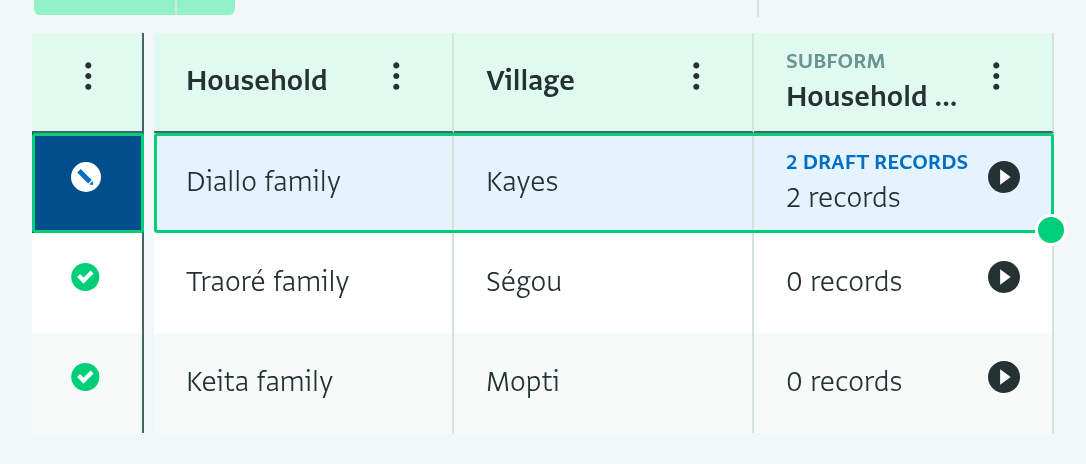
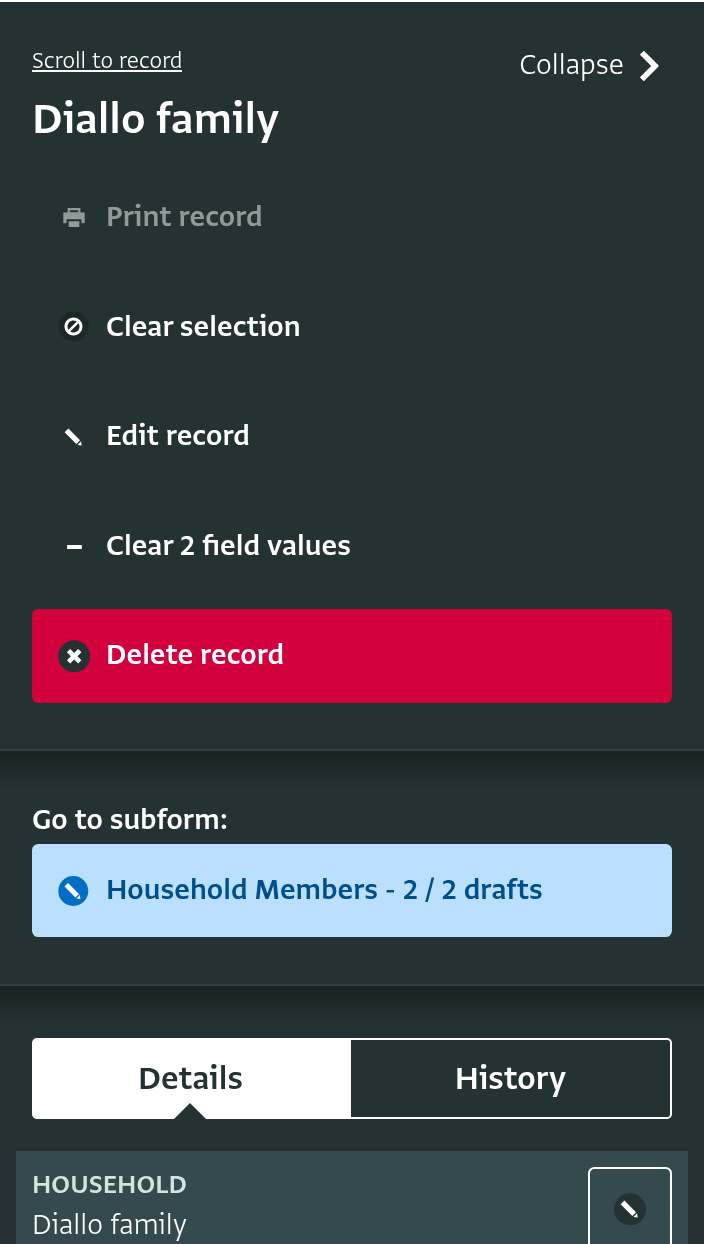
When a record has subrecords that are drafts, the parent record now shows it:
- In the table view, the subform column of the record is blue and shows how many subrecords are drafts, for example 2 draft records.
- In the record panel, the subform button is blue and shows the number of subrecords and the number of drafts, for example Household Members - 2 / 2 drafts.
Learn more
For more details, see the updated documentation:
As always, we would love to hear your feedback. Let us know in this thread how these changes work for you.